
All stories / Product Team
Our systematic backup process to migrate or update our Moodle application

-Abirami S, Moodle Developer, Product team
When we adapted Moodle-based LMS for codePannu, we had to host the application on a couple of new environments before finalizing one hosting provider. Later, when the provider was finalized and our Moodle application was deployed in production, we started to periodically move updates from development to production too.
During both processes, we didn’t fully appreciate the importance of structured backups, which led to a lot of duplicated work and wasted time. However eventually, the process taught us that reliable backups are crucial for efficient migration, application updates and peace of mind. I have written this blog to share our engineering team’s experience with choosing the ideal backup process for updates and migration.
There are two ways to take a backup of your Moodle application. Let me explain both options so you will be able to choose the right option, whether it is to move application updates from development to production environment, or to migrate to a new hosting server.
Course Backup
Course backup is a partial backup option provided by Moodle to take backup of the courses and other course related information such as students assigned to the courses, attendance, assignments etc. This backup will not include modules that are not connected to courses such as information pages, overall application-specific information such as themes and plugins. The concept is similar to removing and servicing one part of a big machine. This is useful when you already have a Moodle application running in production and you want to update the course content in the application. Since course information is the most frequently updated content in an LMS, this type of backup is used for the periodic content updates in production. Since only the course information is updated and the other modules stay the same, this is very efficient and time saving.
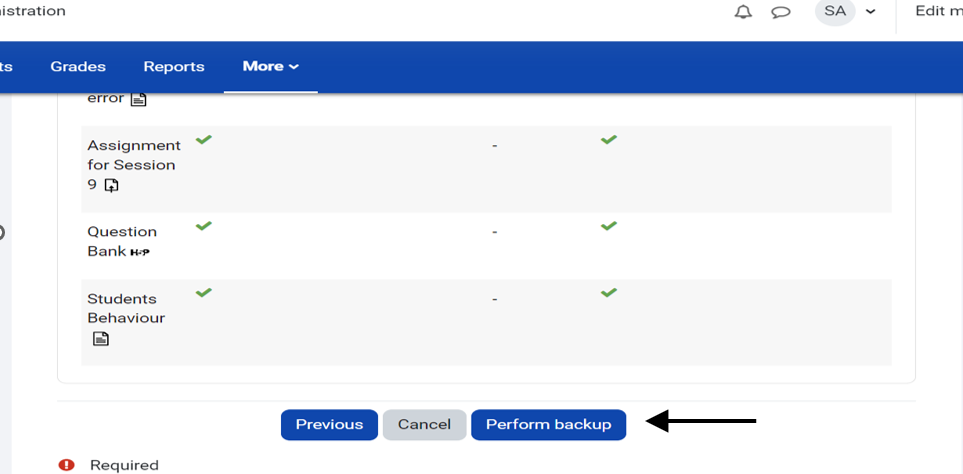
Pic 1: Course backup on Moodle
Course backup also gives great flexibility to choose the different elements of a course, such as activities, resources, and user data during the backup. See Pic 1.
Our team regularly uses course backups, to update the application in production with content from development environment. We pick the courses, select the required elements of the course and take the backup from our development environment. Then we import the backup into the Moodle application in our production environment. The process is straightforward and can be done quickly without affecting the entire site.
Complete application backup
A complete backup is required when you making significant application updates in production environment. We have listed those changes below
- Updating the entire application in production with a new theme. Taking backup of complete application before the update is highly recommended.
- Updating various modules other than courses.
- Adding an entirely new module or making significant changes to structure of old modules.
- Migrating to a new server.
If you have any of the above requirement, you can choose the complete application backup. This process is critical, involves many steps and needs to be executed carefully. We have explained the steps to help you with a smooth migration process. The two steps of the process are to take backup of the Moodle files and the database separately.
- Moodle files: Use the file manager in your cPanel to navigate to home/<username./<domain name>. This folder contains all the files of your Moodle application. You will be able to download the contents as a compressed file.
- Database: This holds the data of our application, including courses, user information, and activities. You can export your Moodle database using phpMyAdmin tool available in your cPanel. See Pic 2.
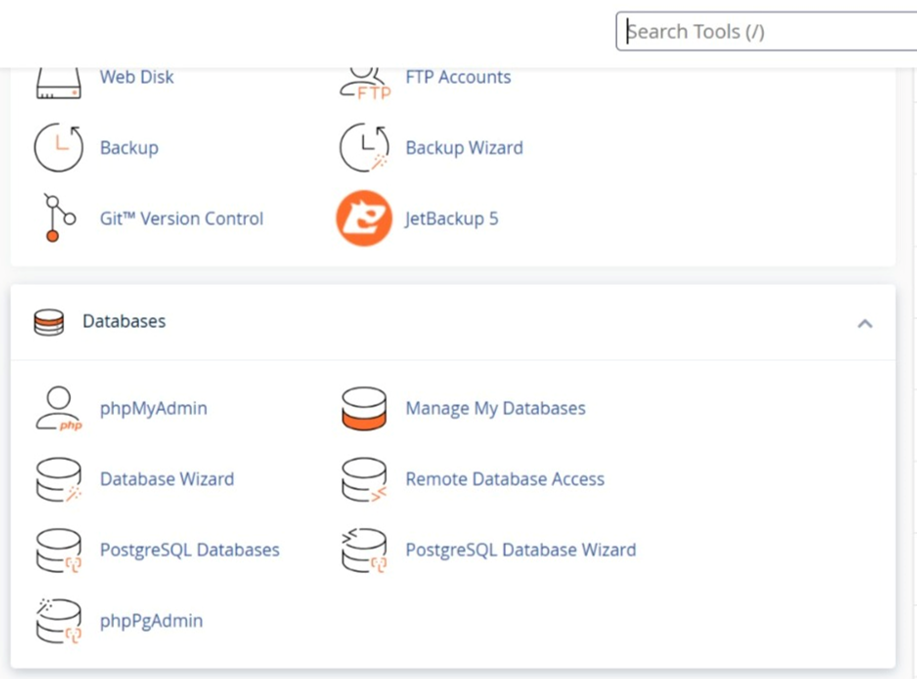
Pic 2: phpMyAdmin tool in cPanel
Migrate to new server
While the process of using backup to update the files in production environment is very straightforward, the process of setting up a new environment involves a couple of additional steps. After you have unzipped and copied the content of your Moodle files into the same path location in your new server, follow the steps below –
- Create a new database. Once you have created the database, you can use phpMyAdmin to import the database content from your backup into the new database.
- Edit the ‘config.php’ and update the new database name, user, and password settings to match the new server’s settings.
To help you understand the importance of following the steps meticulously, let me explain a challenge we encountered during our first migration. We uploaded the Moodle files through the file manager on our new server and imported the downloaded database to our new server’s database management system.
We changed the config.php file too, however we encountered repeated errors and were unable to get the application up and running. It was frustrating because we had meticulously followed all the necessary steps. So, why were we facing this issue?
After some investigation, we discovered that a single letter was missing in the database name. This small mistake caused the entire process to fail. So as much as possible, copy and paste the database name, username, and password. This reduces the risk of typos. Accuracy is key to successful backups and restorations.
I have shared our experience with systematic backups for different scenarios, hoping that it would be helpful for other Moodle administrators to make informed decisions and avoid common pitfalls. By following a structured backup and restoration process, you can streamline your Moodle updates and migrations, minimizing downtime and potential data loss.